# Banner Footer
{% hint style="success" %}
In the theme editor **(Customize) => Section**, click **Banner Footer**
{% endhint %}
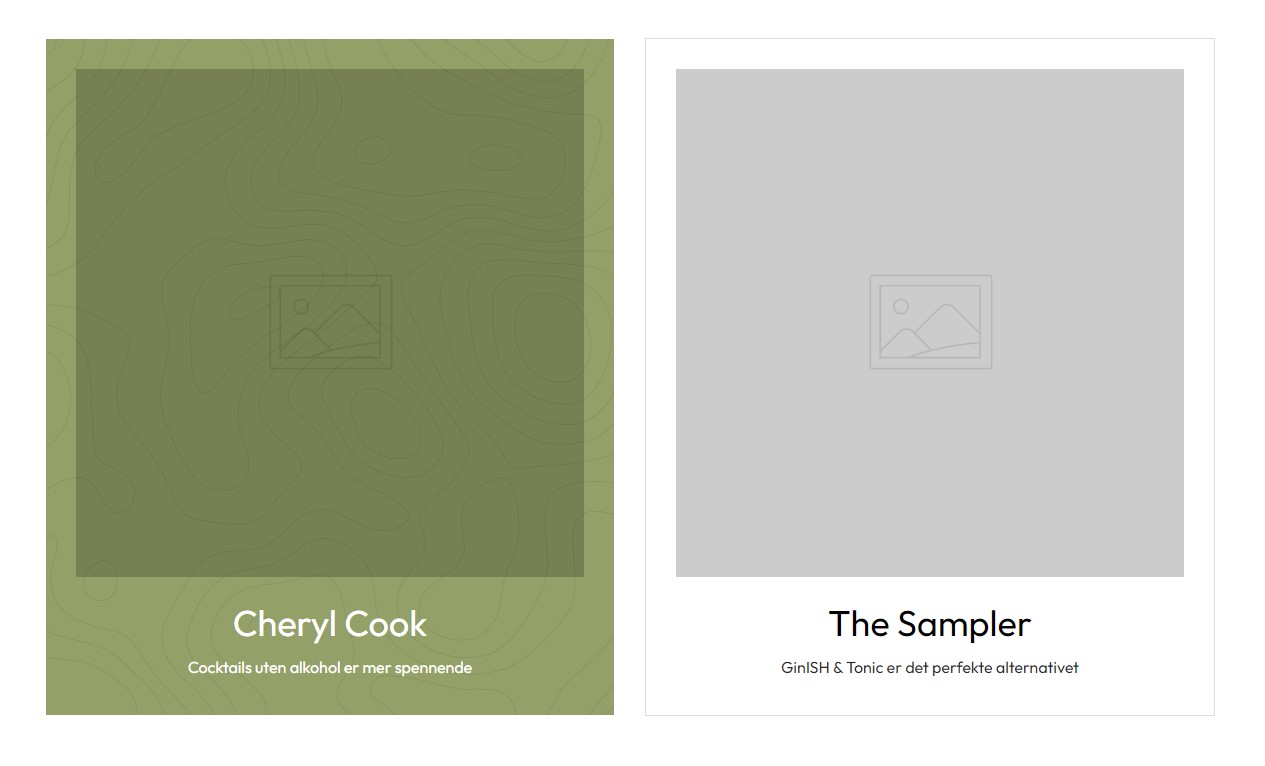 ### General Settings
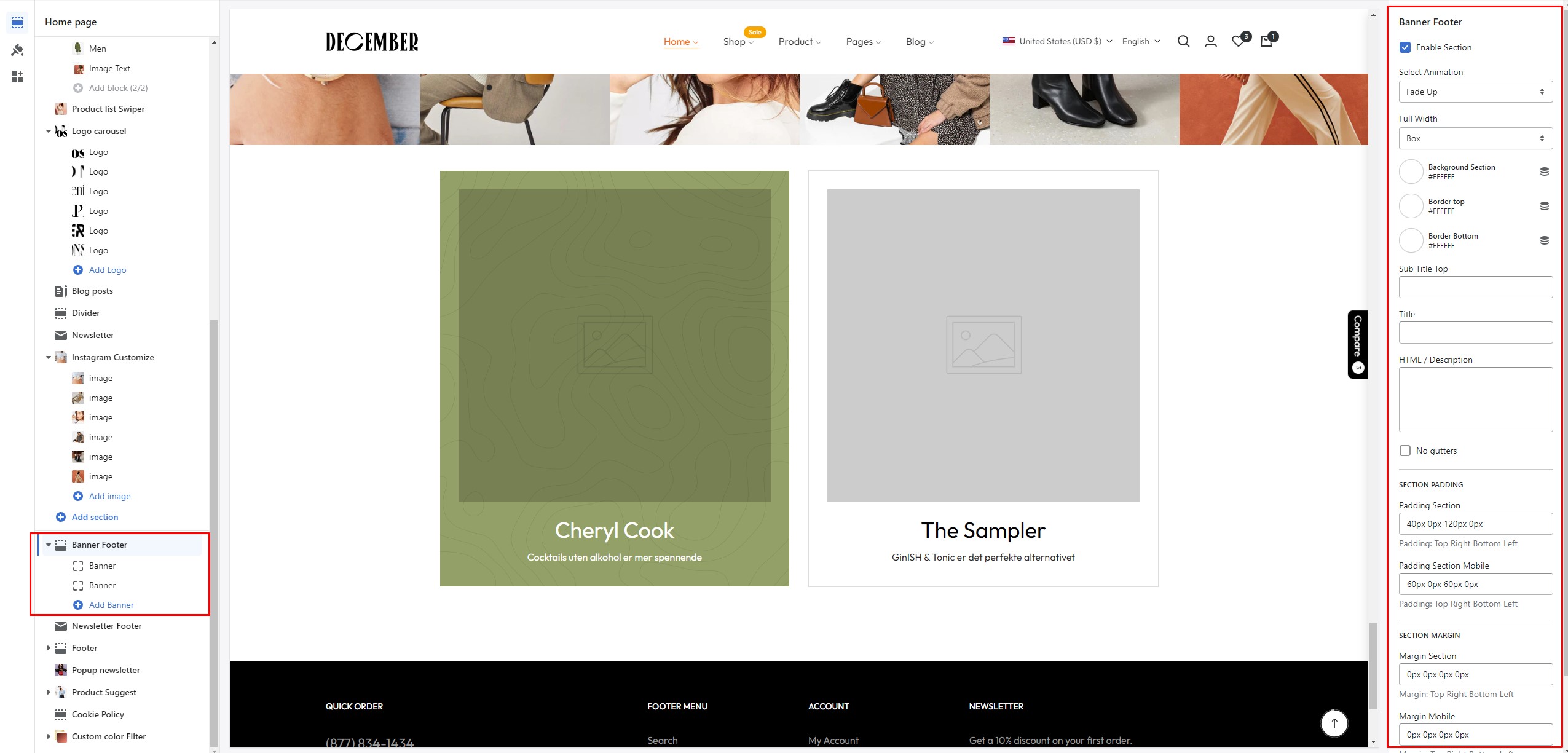 You can settings
* Enable/Disable Section
* Select Animation
* Width Container
* Background Section
* Border
* Sub Title Top
* Title
* Html/ Description
* Modify Padding Section
### Block Settings
{% hint style="success" %}
In the **Banner Footer** section, click **Add Banner**
{% endhint %}
You can settings
* Enable/Disable Section
* Select Animation
* Width Container
* Background Section
* Border
* Sub Title Top
* Title
* Html/ Description
* Modify Padding Section
### Block Settings
{% hint style="success" %}
In the **Banner Footer** section, click **Add Banner**
{% endhint %}
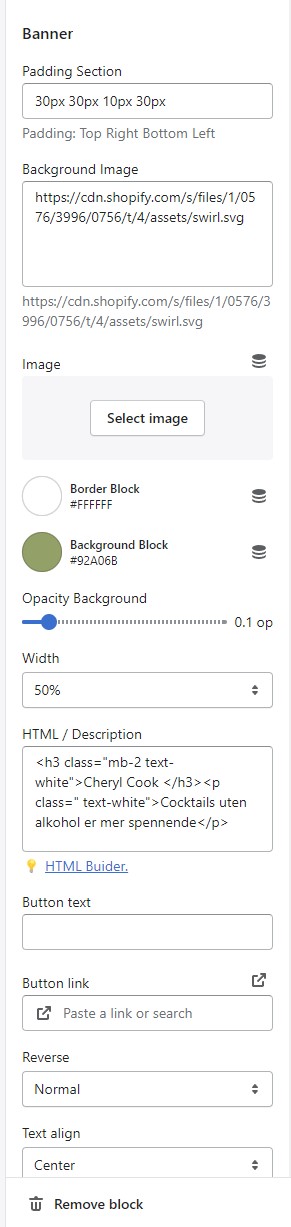 You can settings
* Padding Banner Block
* Background Image
* Image
* Border, Background color
* Opacity Background
* Width of Block
* HTML/ Description
* Button
* Reverse ( Swap Image and Text)
* Text align
You can settings
* Padding Banner Block
* Background Image
* Image
* Border, Background color
* Opacity Background
* Width of Block
* HTML/ Description
* Button
* Reverse ( Swap Image and Text)
* Text align